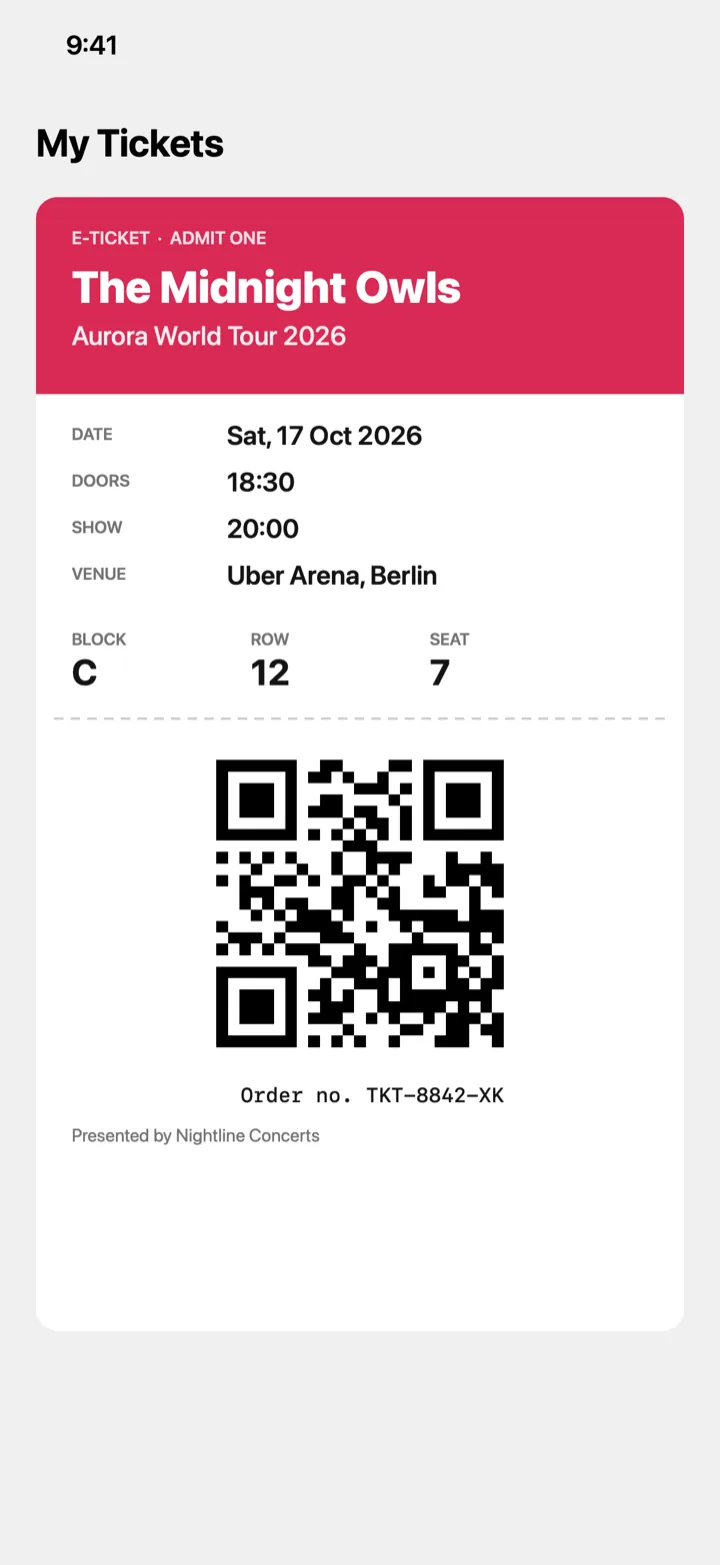
Screenshots, photos, and PDFs
Share from any app or pick from your library. In a PDF with several pages, Tical uses the page that carries the code.

For iPhone and iPad
Turn a ticket screenshot or PDF into a calendar event and an Apple Wallet pass. Tical reads it on your iPhone and never uploads it.
Requires iOS 27.

How it works
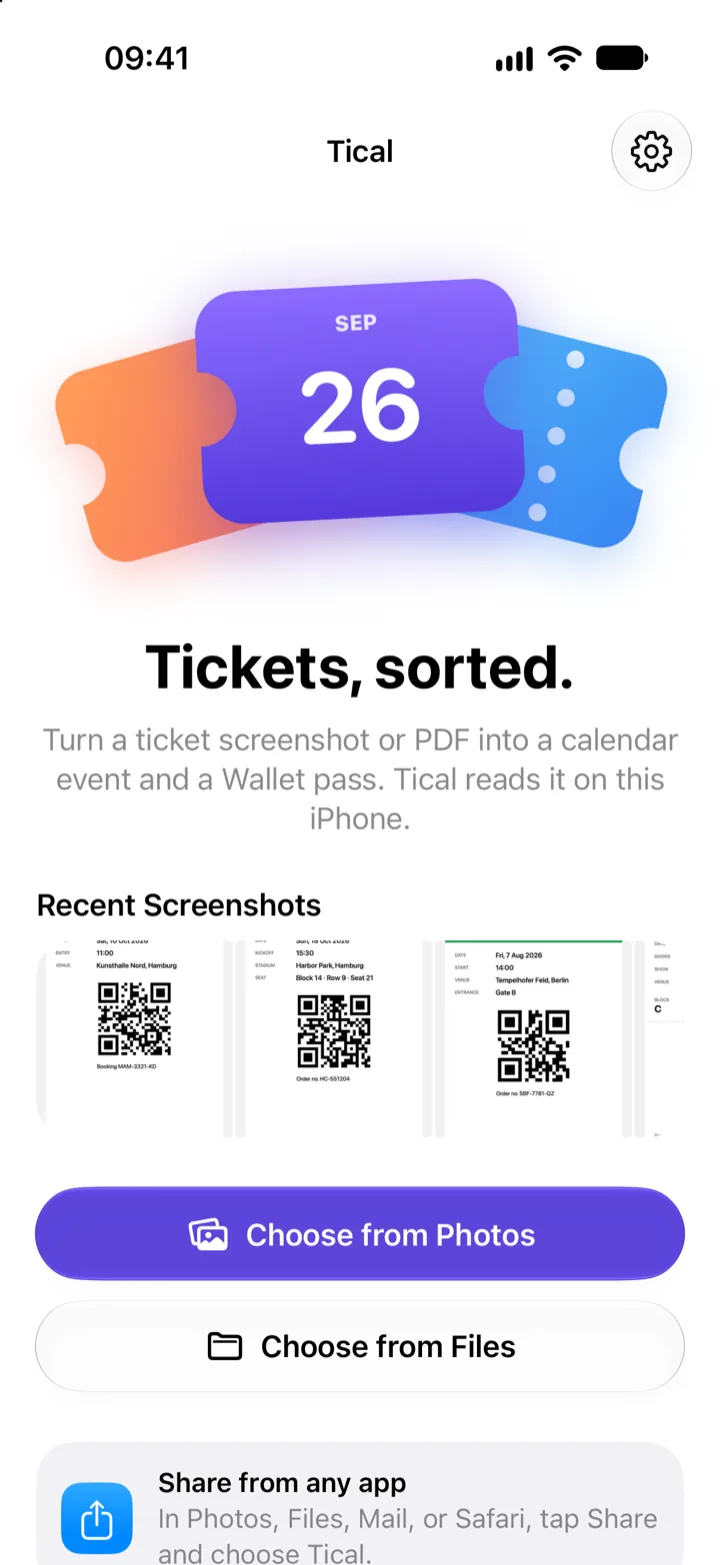
Tap one of your recent screenshots, choose a photo or a PDF, or share a ticket to Tical from Photos, Files, Mail, or Safari.
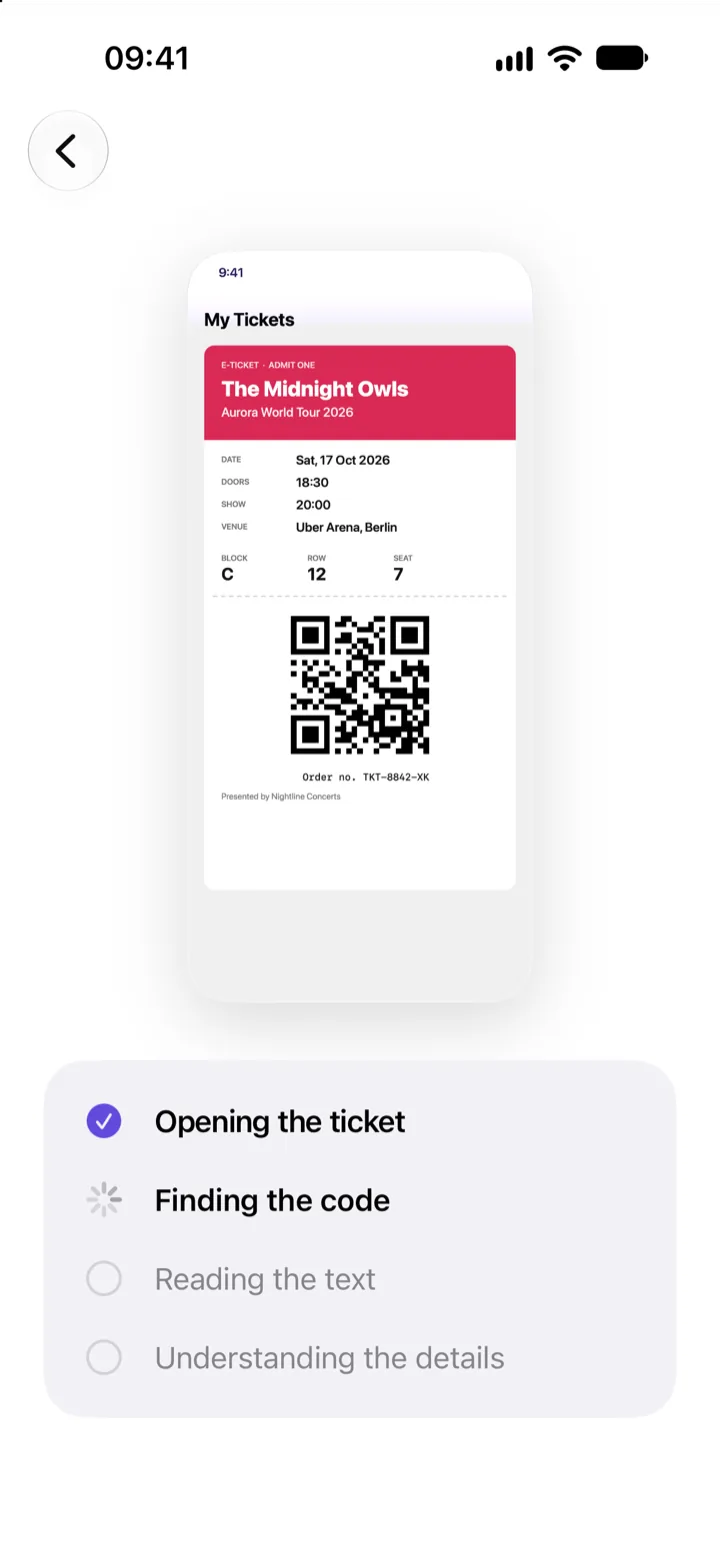
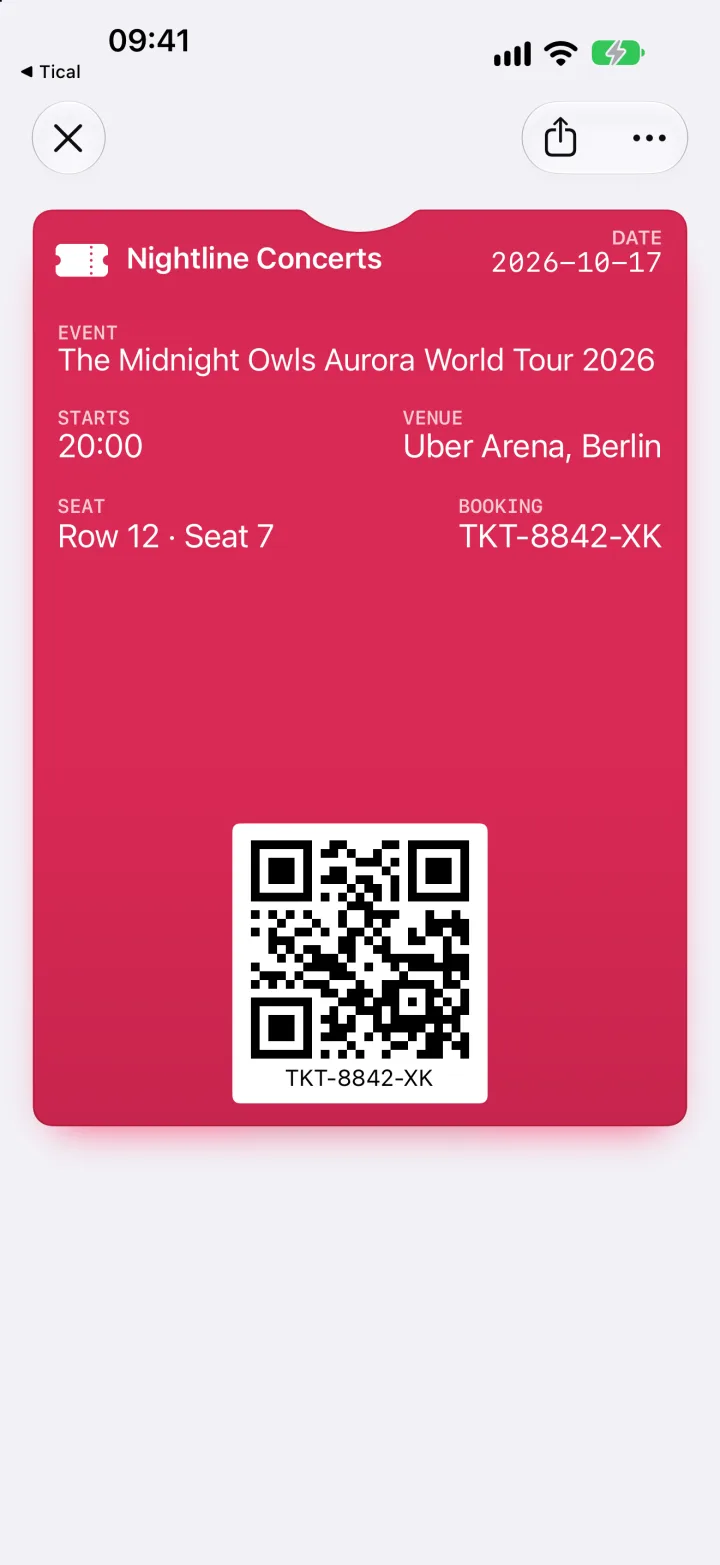
It finds the code and reads the event, date, time, venue, seat, and booking number. You see the pass as Wallet will show it, and can change anything.
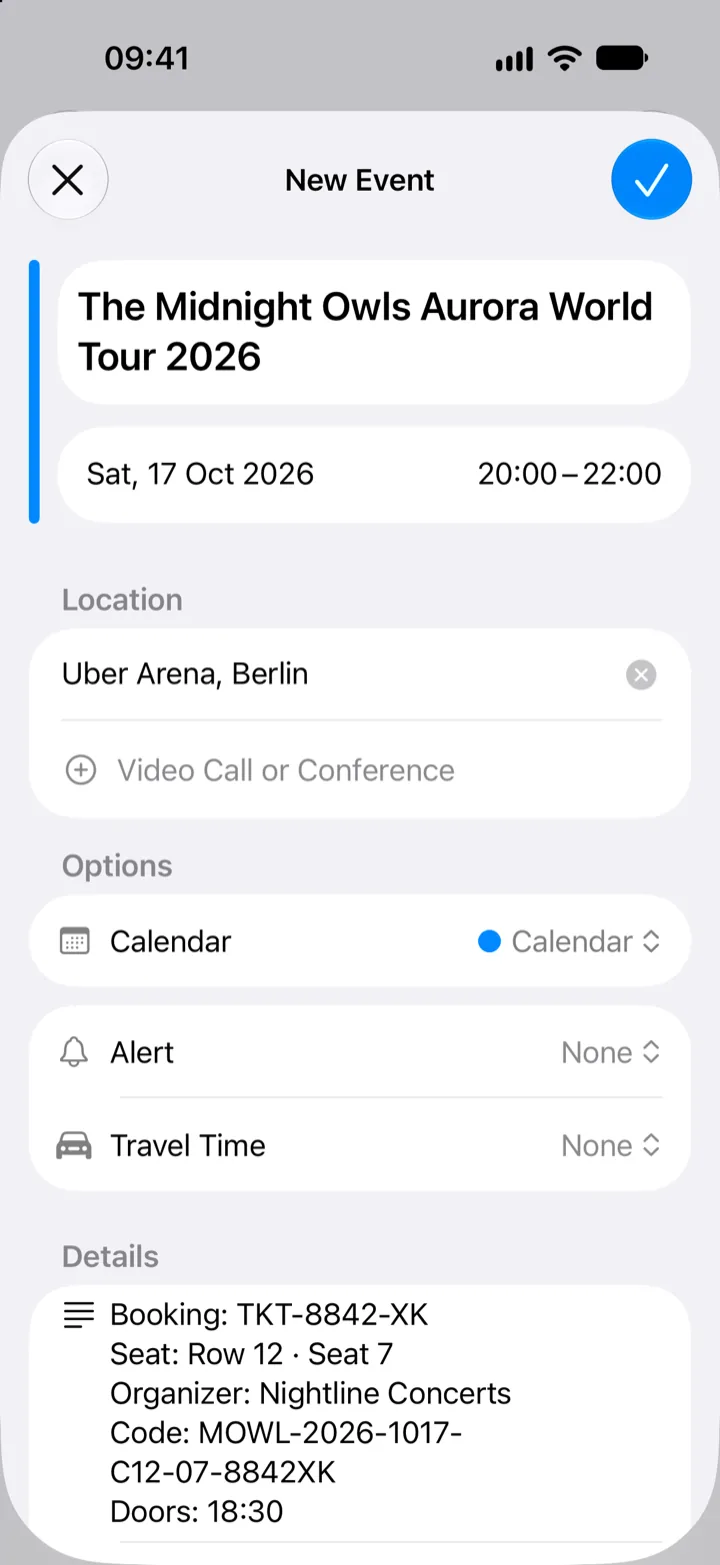
Calendar opens with everything filled in, including the seat and booking code in the notes. Add to Apple Wallet puts the pass next to your other tickets.
Features
PDFs from small venues, museum passes, screenshots from apps without Wallet support. If it has a code, Tical can work with it.
Share from any app or pick from your library. In a PDF with several pages, Tical uses the page that carries the code.
QR, Aztec, PDF417, and Code 128 codes carry over as they are. Tical redraws the code and reads it back before you add the pass.
Tical looks at the ticket the way you would, and prefers the show time over the doors time. Without Apple Intelligence, a built-in parser takes over.
Events open in Calendar's own editor, so Tical never needs to see your calendar. Seat and booking code go into the notes.
Each pass takes its color from the ticket itself, and Tical keeps the text on it easy to read. Pick another color, an icon for the kind of event, or a photo of your own as the background.
No permission prompts, no account, and no tracking. Photos, Files, and Calendar open in system screens that give Tical only what you choose.
Apple Wallet
Tical builds each pass on your iPhone, with the ticket's details, its code, and a color from the ticket. Wallet only accepts signed passes, so Tical's server signs it, without ever seeing your ticket.
Only a fingerprint leaves your iPhone: a short hash of the pass's files, which can't be turned back into the ticket. Apple's App Attest proves the request comes from Tical on a real device.
Privacy
Tical doesn't collect personal data, and your tickets never leave your iPhone.
Vision and Apple Intelligence run on your iPhone. Tickets are never uploaded.
Tical never asks for access to your photos, files, or calendar.
No sign-up, no analytics, and no ads.
To sign a Wallet pass, Tical sends only its fingerprint. The server never sees the event, the seat, or the code.
FAQ
No. Tical reads tickets with Vision and Apple Intelligence on your iPhone. To sign a Wallet pass, it sends Tical's server only a fingerprint of the pass, never the ticket or its details.
Yes, if you're in the Apple Developer Program. Set up a Pass Type ID certificate in Settings › Wallet Passes › Use Your Own Certificate. Tical then signs every pass on your iPhone and doesn't contact its server. The key stays in your iPhone's keychain.
The pass carries the same code as your ticket, and Tical checks that the redrawn code reads back the same before you add it. Some venues only accept their own app or the original ticket, so keep it at hand.
Screenshots, photos, and PDFs with a QR, Aztec, PDF417, Code 128, or Data Matrix code. Wallet can't show Data Matrix codes, so those become a QR code with the same content, and Tical tells you when that happens.
Yes. Adding to Calendar works the same. iPad has no Wallet app, so Tical sends the signed pass to your iPhone instead.
iOS 27 or later. Apple Intelligence gives the best results; without it, Tical uses its built-in text parser, and you can correct anything on the review screen.
Then use it. Tical is for the tickets that don't come with a Wallet pass.